Support
Help for every day in the workspace
Guides for Spaces, billing, apps, and access — and a direct line to the Kino team when a question needs a person.
- 14-day free trial
- Valid payment method required
- Cancel anytime

Free trial of Professional features
Per user, per month
Per user, per year
Apps: iOS, Android, Windows, macOS
Talk to Kino
Four ways to get help
Email reaches a person. Kino AI covers product questions. A demo is the right path for Enterprise, onboarding, and security reviews.
Find an answer
Search the help center
Browse a topic, or type at least two characters to filter this page.
Getting started
Open a workspace and bring the team in
A Kino Workspace is the team's always-on online co-working space. It stays open through the day. People enter it. They do not schedule it.
Start the 14-day trial
The trial includes Professional features, with no cap on team size while it runs. A valid payment method is required. Billing does not start until the trial ends, unless the subscription is cancelled first.
Enter your workspace
After signup, enter your workspace at app.kino.live. The space is persistent, so work continues when people return instead of starting over each time.
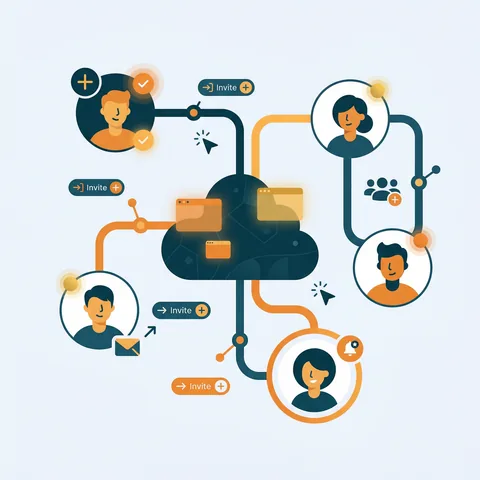
Invite the people who work together
Send invites to the addresses your team actually uses. If an invite never arrives, confirm the address and check spam. An admin can send it again. If it still fails, email [email protected] with the workspace name and the address.
Install the app for each device
Kino Live is on iOS, Android, Windows, and macOS. The same workspace is available on each one. Use the download page so the install comes from Kino.
Learn the Spaces before the first week fills up
Spatial Spaces carry presence and proximity. Private Spaces are invite-only. The Lounge is where people meet the team. Spaces Chatter keeps short conversation inside a Space.
Spaces and presence
Spaces, presence, and conversation
Professional includes 2 Kino Workspaces. Use them for two teams, two clients, or two contexts that should not share one floor.
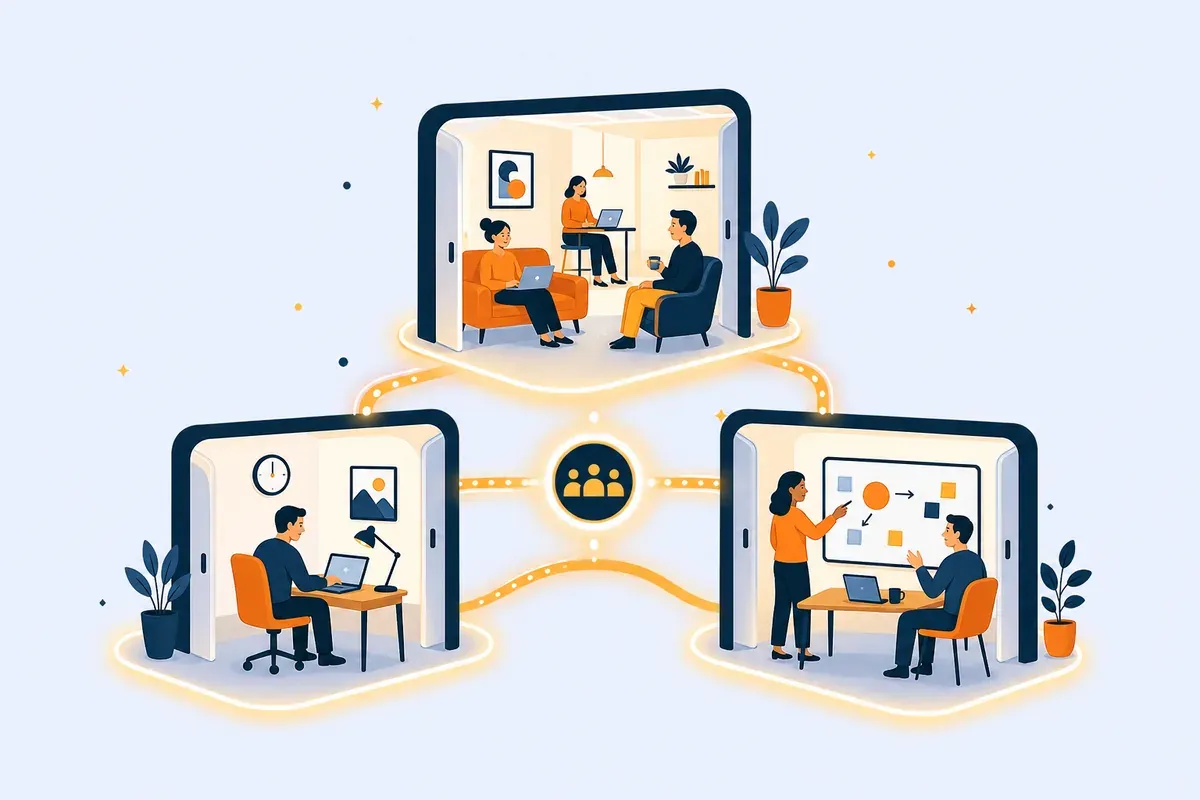
Spatial Spaces are where position matters. People move through them, and conversation follows proximity. You hear who is near. Stepping away is how a conversation fades.
Private Spaces are sealed. Only invited people can see or hear what happens there. They are for confidential conversations, not for focused work.
The Lounge is the social side of the office: directories, Custom Avatars, and a place to meet the team without turning the whole floor into one conversation.
Spaces Chatter is the lightweight thread that stays inside a Space, so context does not scatter. Screen Sharing shows a screen in the Space. Team Presence shows who is in, who is focusing, and who is away.
Privacy mode can blur video. Someone can stay present and reachable without being fully on camera.
When a Space does not behave as expected
- If a Spatial Space feels quiet, move closer. Distance changes what you hear.
- If someone cannot enter a Private Space, check the invite and their role.
- If presence looks stale, leave the workspace and enter it again on the same account.
- For a full walkthrough of a feature, use the links below.
Spaces Technology
How conversation follows where people stand
Spaces Technology is the engine inside Kino Live. It is what makes a Kino Workspace feel like a shared workplace instead of a list of links.
In a Spatial Space, conversation follows proximity. Audio rises as people move closer and fades as they step away. A question can start because someone is near, not because a time was booked.
People move through Spatial Spaces as one continuous workplace. A project Space and the Lounge stay connected. Stepping from one into another does not start a new session.
What Spaces Technology is for
- Hear who is near, and let a conversation fade by stepping away.
- Gather a few teammates on the spot, without sending a calendar invite.
- Keep context with the Space: who is there, and what the team is working on.
- Use a Private Space when the conversation should stay with invited people only.
People
Presence, avatars, and directories
Team Presence shows who is in, who is focusing, who is in a conversation, and who is away. It updates as people move, so a teammate can see whether this is a good moment.
Presence also shows which Space someone is in. Joining them means entering that Space, not sending a status ping.
The Lounge holds Member Directories and Custom Avatars. That is where a new teammate learns who is on the team and how people appear in the workspace.
Privacy mode can blur video. A person stays present and reachable without being fully on camera. Role-based permissions still decide who can enter each Space.
If presence looks wrong
- Leave the workspace and enter it again on the same account.
- Confirm the person was invited to that workspace and that their role allows the Space.
- A blur is privacy mode, not a failed camera, unless they say the camera itself will not start.
The workday
One workspace for every way the team works
A Kino Workspace stays open all day. People enter it when work starts and leave it when work ends. The workplace does not have to be rebuilt for each session.
Remote, hybrid, in-office, and field teammates share that same workspace. Where someone is sitting does not decide whether they can see the team or enter a Space.
Automated Time Clock records hours when someone enters or leaves a workspace. Payroll-Ready Reports apply preset member rates and export to CSV. Attendance is a byproduct of being in the workspace, not a separate timesheet.
A confidential conversation belongs in a Private Space. Only invited people can see or hear it. Team Presence can still show that the person is in that Space.
Showing work
Screen Sharing and help from the field
Screen Sharing starts inside a Space. The people already there see the screen. There is no separate link to send before the work can be shown.
Teams use it to walk through a design, train a new teammate, or look at a problem together. The share stays in the Space with the conversation.
Smart glasses support connects Meta glasses to the workspace. A person on site can share a live first-person view, hands free, so a specialist in the workspace sees the same situation.
Mobile apps keep field teammates in the same workspace as people at a desk. Presence, conversation, and the Spaces they can enter stay in sync when they switch devices.
If a share does not start
- Allow screen capture if the operating system asks.
- Close another app that is already capturing the display.
- Confirm the people who need to see it are already in the Space.
- For glasses, confirm the Meta device is connected and email [email protected] with the device and the message on screen.
Apps and devices
The workspace on every device the team uses
Enter your workspace at app.kino.live, or install the native app. The workspace is the same place on every supported device.
Download only from the Kino Live download page or the official store it links to.
Smart glasses support connects Meta glasses to the workspace for hands-free, first-person help in the field. A specialist in the workspace can see the situation the way the person on site sees it.
If an app will not install or open
- Download again from the Kino Live download page.
- Note the platform and the operating-system version.
- On desktop, restart the computer and run the installer once more.
- Email [email protected] with the platform, the version, and the exact message on screen.
Billing and plans
Trial, price, changes, and cancellation
Professional is $29 per user per month, or $300 per user per year. There is no setup fee. Enterprise is custom and scoped with the team.
Free trial
- 14 days of Professional features.
- No limit on team size during the trial.
- A valid payment method is required. Credit card and PayPal are accepted.
- You are not charged until the trial ends.
- Unless the subscription is cancelled first, the plan bills automatically when the trial ends.
Paying
- Major credit cards and PayPal are accepted.
- Enterprise customers can arrange invoicing.
- If automatic billing fails, an electronic invoice is sent and the balance is due by the date on that invoice.
- Fee changes are announced in advance and take effect at the end of the current billing cycle.
Changing or cancelling
- Plans can be upgraded or downgraded at any time. Changes take effect immediately.
- Cancel from profile options after signing in, from the account management page, or by emailing [email protected].
- A monthly subscription can be cancelled at any time. That billing period is still charged, and access continues until the period ends.
- An annual subscription may be cancelled within 30 days of the start. After those 30 days, cancellation does not result in a refund.
- Except where the law requires otherwise, paid subscription fees are non-refundable.
Admins and teams
Access, roles, hours, and reports
The Management Suite — the Workspaces Management Suite — is where admins control the organization, each workspace, and each role.
Roles decide who can enter a workspace, who can manage it, and what a person is allowed to do. That is how client workspaces, departments, and leadership Spaces stay separate.
Professional includes 2 Kino Workspaces. A team that needs more workspaces, a custom domain, or a tighter security setup should talk with sales about Enterprise.
Automated Time Clock records hours when someone enters or leaves a workspace. Payroll-Ready Reports apply preset member rates. Reports export to CSV for payroll.
When someone cannot get in
- Confirm the invite went to the right workspace and the right email.
- Confirm the role includes access to that space.
- If they can sign in but cannot enter a Space, the block is usually permission.
- Email [email protected] with the workspace name, the person's email, and the role you expected.
Integrations
Microsoft Teams, Slack, and custom connections
Professional includes chat integration with Microsoft Teams and Slack. The online co-working space stays the place people work. Existing chat can stay in step beside it.
Microsoft Teams messages sync both ways with Kino Live. A message sent in one place can appear in the other, so a phased rollout does not split the team in half.
Slack is included as a chat integration on the Professional plan. Enterprise adds custom integrations for systems that are specific to the organization.
If messages look out of sync
- Note which tool, which workspace, and which message did not cross. A timestamp is enough.
- Confirm both people belong to that workspace and the integration is on for it.
- Email [email protected] with those details. Leave private message text out unless you mean to share it with support.
Privacy and security
Control, reviews, and who to write
Private Spaces keep an invited conversation sealed. Roles decide who can enter, see, and manage a workspace. Privacy mode can blur video so presence does not require a clear camera.
Enterprise adds an Advanced Security Platform and a custom domain, so the workspace can live on the company's domain.
Security reviews, vendor questionnaires, data-processing questions, and compliance requests go to [email protected]. Include the company name and the date you need an answer. The team handles those reviews directly.
The Privacy Policy describes how personal data is handled. The Terms of Service cover subscriptions, use of the service, and closing an account.
Fix it faster
Troubleshooting
Try the checks in order. If the workspace still misbehaves, email the team with what you already tried.
- Check the microphone and speaker permissions for the Kino Live app or the browser.
- Confirm the correct input and output devices are selected on the computer or phone.
- In a Spatial Space, move closer. Conversation follows proximity, so distance lowers what you hear.
- Try the same account on a second device. If it works there, the first device is the place to look.
- Email [email protected] with the platform, the workspace name, and whether anyone else in the Space could hear.
- This is how Spatial Spaces work. Audio follows distance, the way a conversation does when people stand nearby.
- Move nearer to the person you need, or step into a Private Space together and invite only the people who should hear it.
- If nobody can hear anyone, even standing together, use the audio checks above and write to the team.
- Confirm the address with the person. A typo is the usual cause.
- Ask them to check spam and promotions folders, and any allow-list their company uses.
- Send the invite again from an admin account.
- If a second send still fails, email [email protected] with the workspace name and the address. Do not forward unrelated personal mail.
- Use the email address on the Kino account.
- Try the app and app.kino.live. Note which one fails, and the exact wording on screen.
- Email [email protected] from the account address, or from another address you control. Describe the message. Do not send a password or a verification code.
- Compare the date with the trial end. The plan bills when a trial ends if it was not cancelled.
- Monthly cancellation still bills the current period. Access lasts until that period ends.
- Annual cancellation after the first 30 days does not create a refund.
- If automatic billing failed, pay the electronic invoice by the deadline printed on it.
- Email [email protected] with the account email, amount, date, and last four digits only.
- Download again from the official download page.
- Restart the device and try one more time.
- Note the operating system version and any error text.
- Email [email protected] with that note and the platform name.
- Allow screen recording or display capture if the operating system asks.
- Close other apps that are already capturing the screen.
- Start the share again from inside the space, with the people who need to see it already there.
- If it still fails, email the platform and whether a permission prompt appeared.
- Confirm the integration is part of the plan. Teams and Slack chat integration is on Professional.
- Confirm both people are in the same Kino Workspace.
- Note the tool, the workspace, and the time of a message that did not cross.
- Email those details without pasting private message contents you do not want support to read.
Plans
What each plan includes
Support answers often start with the plan. These are the published limits. Full pricing lives on the pricing page.
Free Trial
for 14 days
- Professional features while the trial runs
- No cap on team size during the trial
- Valid payment method required
- No charge until the trial ends, unless you cancel first
Professional
per user per month, or $300 per user per year
- 2 Kino Workspaces
- Management Suite, Automated Time Clock, and Payroll-Ready Reports
- Chat integration with Microsoft Teams and Slack
- No setup fees
Enterprise
scoped with the team
- Everything in Professional
- Advanced Security Platform
- Custom domain for the workspace
- Custom integrations
Common questions
Short answers
Email [email protected]. Include the account email, the workspace name, and what you expected to happen.
Product questions can also start with Kino AI on the FAQ page. Enterprise, onboarding, and security reviews are a better fit for a demo.
The trial is 14 days and includes Professional features. Team size is not limited during the trial.
A valid payment method is required. You are not charged until the trial ends. If the subscription is still active then, the selected plan bills automatically.
Yes. A valid payment method is required to start the trial and to run a subscription. Credit card and PayPal are accepted. Enterprise customers can arrange invoicing.
Cancel from profile options after you sign in, from the account management page, or by emailing [email protected].
A monthly subscription can be cancelled at any time. That billing period is still charged, and access continues until it ends. An annual subscription may be cancelled within 30 days of the start. After those 30 days, cancellation does not result in a refund.
Except where the law requires otherwise, paid subscription fees are non-refundable.
Annual subscriptions may be cancelled within 30 days of the start. Cancellation after those 30 days does not result in a refund. Monthly cancellation stops renewal, and the current period remains billed.
Yes. Upgrade or downgrade at any time. Changes take effect immediately. There is no setup fee.
Professional is $29 per user per month, or $300 per user per year. Enterprise is custom.
Professional includes 2 Kino Workspaces. The trial includes Professional features, so the same workspace count applies during the trial.
Teams that need a different footprint talk with sales about Enterprise.
Spatial Spaces are where presence and proximity live. You hear people who are near.
Private Spaces are invite-only Spaces for confidential conversations. They are not for focused work. The Lounge is where the team meets, with Member Directories and Custom Avatars. Spaces Chatter is the lightweight conversation that stays inside a Space.
Spaces Technology is the spatial engine in Kino Live. In a Spatial Space, conversation follows proximity. People move through the workspace, and a conversation can start because someone is near.
Custom Avatars and Member Directories live in the Lounge. Team Presence shows who is in, focusing, in a conversation, or away, and which Space they are in.
Yes. Kino Live is one online co-working space for remote, hybrid, in-office, and field teammates. The same presence and the same Spaces are available wherever someone is working.
Kino Live is an online co-working space for remote and hybrid teams. It stays open through the day, with live presence, natural conversation, and shared Spaces.
It is not a scheduled session. People enter a workspace and work alongside the team.
In Spatial Spaces, conversation follows distance. Moving closer makes a person easier to hear. Moving away lets the conversation fade. A Private Space is the right place when a whole group should hear one another clearly.
Native apps are available for iOS, Android, Windows, and macOS. You can also enter your workspace at app.kino.live. The workspace stays in sync across those devices.
Yes. Meta smart glasses can share a live first-person view into the workspace so a field teammate and a specialist can work the same problem hands-free.
Professional includes chat integration with Microsoft Teams and Slack. Teams messages sync in both directions.
Enterprise can add custom integrations for the rest of a company's stack.
Automated Time Clock records time when someone enters or leaves a workspace. Payroll-Ready Reports use preset member rates and export to CSV.
Email [email protected] with the company name, the question, and the date you need an answer. Use that path for questionnaires and data-processing requests.
Private Spaces, role-based permissions, and privacy mode are part of the product. Enterprise adds an Advanced Security Platform and a custom domain. Read the Privacy Policy for how personal data is handled.
The account email, workspace name, plan, and platform. Say what you expected, what happened, and about when. A screenshot of the message on screen helps. Leave out passwords, full card numbers, and verification codes.
You can terminate the account, and cancel the subscription with it, from profile options after signing in. You can also email [email protected] from the account address and ask the team to close it.
Closing an account follows the same cancellation rules as the plan. Monthly access continues until the paid period ends.
Before you write
What to include
A complete note gets a useful reply. Send this, and leave secrets out.
- The email address on the Kino account
- Workspace name and plan: Trial, Professional, or Enterprise
- Platform: iOS, Android, Windows, macOS, or app.kino.live
- What you expected, and what happened instead
- About when it happened, and any short message shown on screen
Kino Live is a product of Kinetx Co LLC. Privacy requests follow the contact path in the Privacy Policy.
Write or book
The team reads [email protected]
Use email for account, billing, and access. Book a demo for Enterprise, a walkthrough, or a security conversation.
See Kino Live with the team
Book a demo for a walkthrough, Enterprise questions, or onboarding. For account help, email [email protected].